
Verifying that a Windows 10/11 (24H2 or 25H2 update) is fully and cleanly installed (no corruption, missing files, or partial upgrades) involves three layers of checks: 1️⃣ Version and build confirmation, 2️⃣ Component Store & System integrity tests, 3️⃣ Windows Update and Servicing health logs.
Here’s a complete, step-by-step way to check all of it:
1. Confirm the Installed Version and Build
Goal: ensure you’re actually running 24H2 or 25H2, not a partial install.
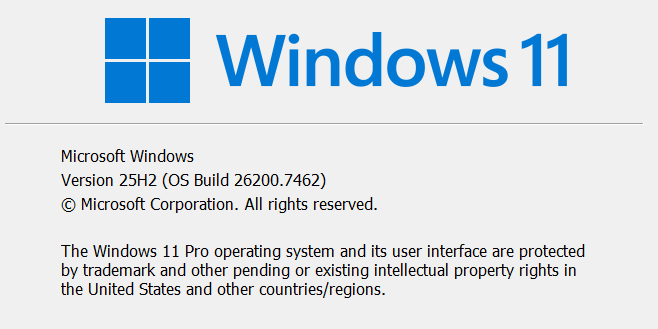
Option 1 — Using winver
-
- Press
Win + R, type:winver
- Press
-
- You’ll see:
-
- Version 24H2 → build ~
26100.xxx
- Version 24H2 → build ~
-
- Version 25H2 → build numbers usually higher
26200.xxx
- Version 25H2 → build numbers usually higher
-
- You’ll see:
✅ Example output:
Windows 11 Version 24H2 (OS Build 26100.2314)

Option 2 — Using PowerShell
Run:
Get-ComputerInfo | Select-Object OsName, OsVersion, OsBuildNumber, WindowsVersion
or
systeminfo | findstr /B /C:"OS Version" /C:"System Boot Time"
You should see:
OS Version: 10.0.26100
If OsBuildNumber is 26100 or above → 24H2 is installed.
2. Check for Missing or Corrupt System Files
Step A — Run System File Checker (SFC)
Open Command Prompt (Admin) and run:
sfc /scannow
What it does: verifies all protected Windows files and replaces any that are missing or corrupted.
✅ Output meanings:
-
- “Windows Resource Protection did not find any integrity violations” → all good.
-
- “Found corrupt files and successfully repaired them” → minor issue, fixed.
-
- “Found corrupt files but could not repair some” → proceed to DISM (below).
Step B — Run DISM (Deployment Image Servicing and Management)
Run these three commands in sequence (Admin Command Prompt or PowerShell):
DISM /Online /Cleanup-Image /CheckHealth
DISM /Online /Cleanup-Image /ScanHealth
DISM /Online /Cleanup-Image /RestoreHealth
-
- /CheckHealth → quick check if corruption is flagged.
-
- /ScanHealth → deeper analysis.
-
- /RestoreHealth → repairs system image using Windows Update or local sources.
✅ Expected result:
“The restore operation completed successfully. The component store corruption was repaired.”
If it fails, check %windir%\Logs\DISM\dism.log for details.
3. Verify Windows Servicing and Update Health
A. Check Windows Update history
Open:
Settings → Windows Update → Update history
Look for:
-
- “Feature update to Windows 11, version 24H2 (or 25H2)” marked as Successfully installed.
-
- No Failed or Retry entries.
B. Check servicing stack and component store health
Run:
DISM /Online /Cleanup-Image /AnalyzeComponentStore
If output says:
“No component store corruption detected.” and “Component Store Cleanup Recommended: No” → the image is clean.
4. Optional Deep Checks
A. Verify boot configuration and partition health
Run:
chkdsk C: /scan
→ should report “Windows has scanned the file system and found no problems.”
B. Confirm recovery and system partitions
Run:
Get-Partition
Get-Volume
Ensure EFI, Recovery, and OS partitions exist and have no “RAW” or missing volumes.
C. Use Reliability Monitor
Run:
perfmon /rel
→ shows post-upgrade errors or installation failures (look for red X events around upgrade date).
5. Verify via Windows Event Log
Check if installation fully completed:
Event Viewer → Applications and Services Logs →
Microsoft → Windows → WindowsUpdateClient → Operational
Filter for Event ID 19 (“Installation successful”) and 44 (“Restart required”) around the update date.
Summary — A Healthy Windows 24H2 / 25H2 System Should Show:
| Check | Result |
|---|---|
winver or Get-ComputerInfo |
Version 24H2 / 25H2, Build ≥26100 |
sfc /scannow |
No integrity violations |
DISM /ScanHealth |
No corruption detected |
DISM /RestoreHealth |
Completes successfully |
Update history |
Feature update successful |
Component Store |
Clean, no cleanup needed |
chkdsk /scan |
No file system errors |
About the Author: markoze

 Install Windows on external bootable drive
 Fixing Windows OS issues and related driver crashes
Products, addons and solutions I recommend
- Disclosure info: images and links here maybe affiliate links and promotions.



Recent posts




Posts categories
Recent artworks


Printed artworks and merchandise

Recommended

- Recommended products and links may be affiliated links